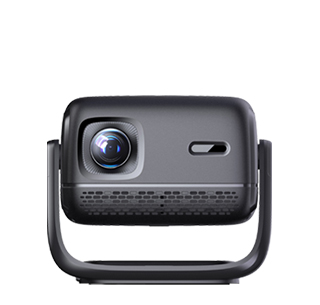
Most smart projectors on the market support Bluetooth mouse connection, which can effectively solve the problem of inconvenient operation of the original remote control, realize precise cursor control, and improve the efficiency of video selection, file browsing, setting adjustment and office operation. It should be noted that only projectors with built-in Bluetooth modules can directly connect Bluetooth mice; traditional non-smart projectors without Bluetooth functions cannot use this function directly, and need to be matched with external Bluetooth adapters for auxiliary connection.
The standard connection steps for a Bluetooth mouse and smart projector are simple and universal. First, turn on the Bluetooth mouse and switch it to the Bluetooth pairing mode. Most Bluetooth mice have a dedicated pairing button, and the indicator light will flash rapidly after entering the pairing state, indicating that the mouse is waiting for device connection. Then turn on the projector, enter the system setting interface, find the “Bluetooth” option, turn on the Bluetooth switch, and click “Search for Bluetooth devices”. The projector will automatically scan nearby available Bluetooth devices, and the mouse model will appear in the device list after a few seconds.
Complete pairing and functional debugging after device identification. Click the searched Bluetooth mouse device name, and the projector will automatically complete pairing and connection. After the connection is successful, a movable cursor will appear on the projection screen, and users can control the projector freely through the mouse. The left button of the mouse is used for confirmation and selection, the right button is for returning and canceling, and the scroll wheel can slide pages up and down, which is completely consistent with the computer operation logic. For dual-mode mice with Bluetooth and 2.4G functions, ensure that the mode is switched to Bluetooth to avoid connection failure.
For connection failures and abnormal problems, there are targeted solutions. If the projector cannot search for the mouse, check whether the mouse is in pairing mode, and restart the mouse and projector Bluetooth function again. If the connection is successful but the cursor is stuck or unresponsive, it may be caused by low mouse power, replace the battery in time. For projectors without built-in Bluetooth, users can insert a USB Bluetooth adapter into the projector’s USB interface, install the driver automatically, and then follow the above steps to complete the mouse connection, realizing Bluetooth mouse control.
Read recommendations:
HW30 Home Cinema - HW Series Projector
Projector with Uniform Brightness and Eye Protection
customization Lumens Projector











 Reviewed: