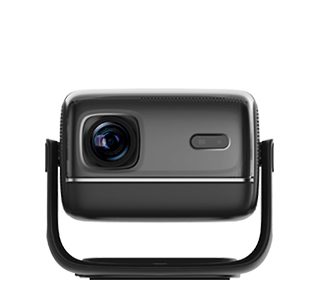
Screen mirroring from a phone to a projector is a convenient way to share photos, videos, presentations, and other content on a larger screen, suitable for both personal entertainment and professional meetings. The process varies slightly depending on the operating system of the phone, but the core principle remains the same: establishing a wireless or wired connection between the phone and the projector to transmit the phone’s display in real time. Wireless connection is the most common method today, as it eliminates the need for cables and allows for greater flexibility in device placement.
For most smartphones, wireless screen mirroring can be achieved through built-in features such as Miracast, AirPlay, or other proprietary screen-sharing technologies. To start, ensure both the phone and the projector are connected to the same Wi-Fi network, as this is a prerequisite for stable wireless communication. On the projector, navigate to the screen mirroring mode through the settings menu, which will make the projector discoverable by other devices. On the phone, open the control center or settings, find the screen mirroring option, select the projector from the list of available devices, and confirm the connection. Once connected, the phone’s screen will be instantly displayed on the projector, and any actions performed on the phone, such as opening an app or playing a video, will be mirrored in real time.
Wired connection is another reliable option, especially when Wi-Fi is unstable or unavailable. This typically requires an adapter that matches the phone’s port (such as USB-C, Lightning, or Micro-USB) and the projector’s input port (such as HDMI). Connect one end of the adapter to the phone and the other end to the projector using an HDMI cable. After connecting, the projector will automatically detect the input signal, and the phone’s screen will be projected without the need for additional settings. Some phones may require enabling “USB debugging” or “HDMI output” in the settings to ensure the connection works properly. Both wireless and wired methods have their advantages: wireless is convenient and cable-free, while wired offers a more stable connection with better image quality, making them suitable for different usage scenarios.
Read recommendations:
HW30 Home Cinema - HW Series Projector
Projectors with Multimedia Playback
Portable 2d Projector with Auto-Focus











 Reviewed: